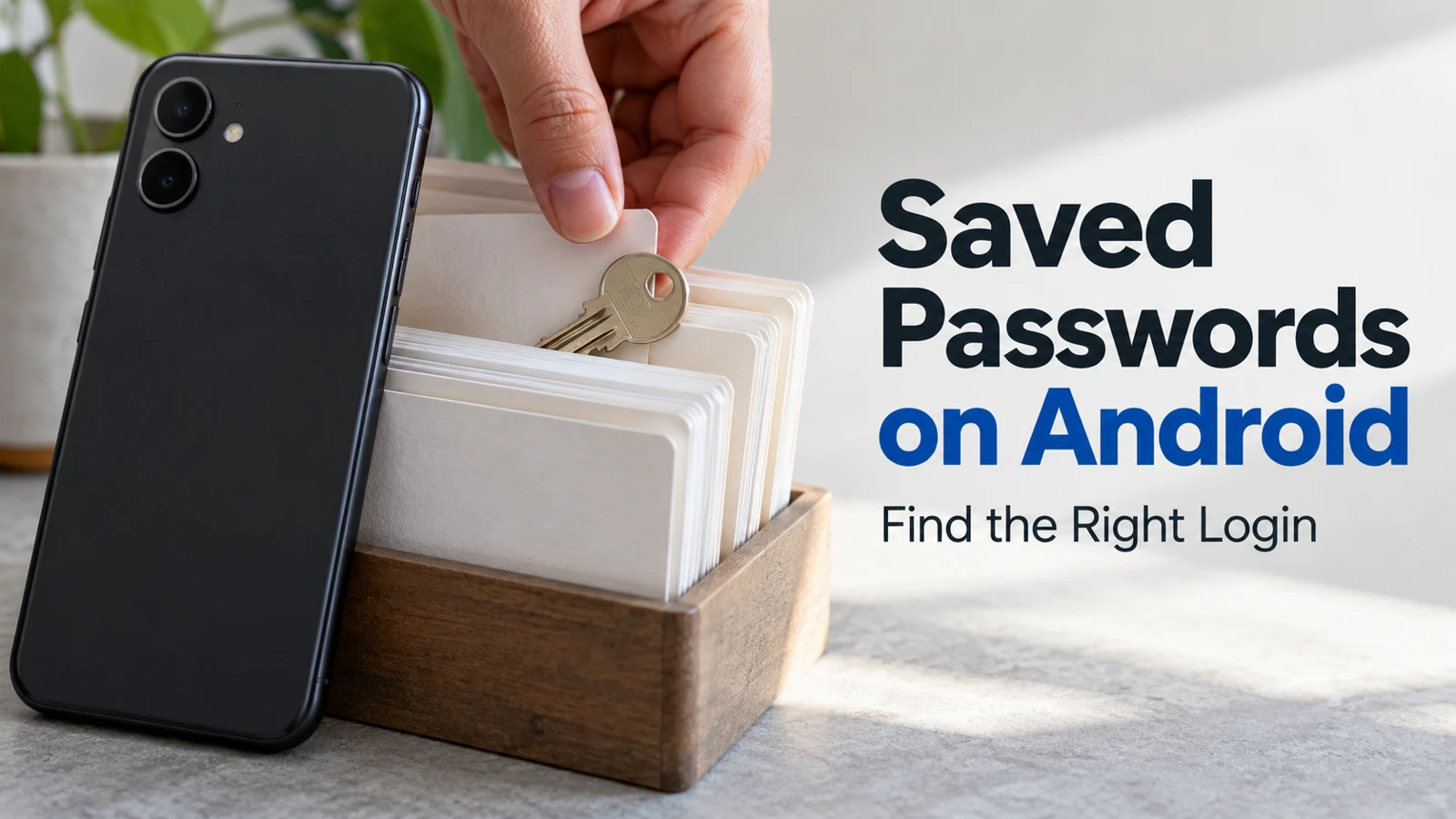
Finding saved passwords on Android is usually a matter of opening the password manager your phone actually uses, then selecting the right account and record. The difficult part is often deciding which of several similar entries is current.
Begin by finding one login you need. Verify it through the service's real sign-in page before cleaning up other records. Editing or deleting a saved entry changes the stored record; it does not, by itself, change the password at the website or close the account.
On this page
First identify where the phone saves passwords
Open Google Password Manager through a known route
Why the record you expect may be missing
Prove which login works before tidying
Review old saved logins on Android in small groups
Remove outdated saved passwords on Android carefully
Leave an Android saved password maintenance checklist
First identify where the phone saves passwords
An Android phone can use Google Password Manager or another password manager selected for autofill. Work and personal profiles may also keep separate records. A password absent from one list is not necessarily lost; it may belong to a different provider or Google Account.
Think back to the usual sign-in prompt. Does it identify Google, a particular app, or a work profile? Check the phone's current password and autofill settings to see the selected service. Names and locations vary by manufacturer and Android version.
Do not install an unfamiliar app merely because a search result claims it will reveal stored passwords. Use the existing manager's official route. If the phone is managed by an employer or school, account policies may limit what you can inspect or change.
Open Google Password Manager through a known route
For Google Password Manager, Google's Android password instructions provide the current supported route. In Chrome, open the menu, go to Settings, and look for Autofill and passwords, then Google Password Manager. The exact grouping may differ as interfaces change.
Select the account you intend to inspect, search for the service, and open the matching entry. Use the available reveal control if you need to view a password. Expect the device's supported identity check before sensitive information is displayed.
When learning how to view saved passwords on Android, keep these checks together:
Confirm the Google Account or other manager shown.
Search by the service's actual website name.
Read the saved username or email before revealing anything.
Compare the website address with the service you mean to use.
Keep the revealed password out of screenshots, messages, and shared notes.
If you need to find saved passwords on an Android phone belonging to someone else, ask that person to open their own manager. Helping with a record is different from taking over access to their private list.
Why the record you expect may be missing
A missing entry can mean the login was never saved, it belongs to another account, or a different password manager handled it. It can also mean the service uses a sign-in method that is not a reusable password, such as a passkey or a connected account.
Check the username used at the service before assuming the password manager is wrong. One household may have several email addresses associated with similar accounts. Searching only for the brand name can hide that distinction.
What you find | What to check next |
|---|---|
No result for the service | Other accounts, profiles, and the selected autofill provider |
Several records | Website address and saved username for each |
A passkey rather than a password | The supported passkey sign-in process |
A record from an unfamiliar address | Whether it is a legitimate service domain before using it |
An old username | Whether the live account still uses that identity |
Do not create a new account immediately to solve a missing saved record. First check whether the existing account's official recovery process can restore access. Duplicate service accounts can create billing, data, and household ownership confusion later.
Prove which login works before tidying
Open the service independently through its known app or website. Try the intended account and current stored credential without sharing the secret with anyone helping you. If you are already signed in, consider the service's safe account checks before deliberately signing out of a session you may need.
If the password fails, use the service's own recovery process. A saved password manager entry is a record, not an authority that can force the website to accept it. Avoid repeated guesses when the service indicates a lockout or recovery requirement.
After a successful password change, update the correct saved record. Then check that the new value was saved for the intended username and website. An automatic save prompt can create another entry rather than replacing the one you meant to update.
For important accounts, confirm recovery details while you have legitimate access. An old phone number or inaccessible email can make the next problem harder even when today's password works. Record only where recovery information is managed, not the private codes themselves in a general checklist.
Review old saved logins on Android in small groups
To review old saved logins on Android, choose a manageable category, such as shopping accounts you still use or household services that renew. Review a few records at a time. The goal is a list that represents current access, rather than an empty list that looks tidy.
For each entry, establish whether the service is still used, which household member owns it, and whether the credential is current. An unfamiliar account might be a real account you rarely use; investigate before deleting its only useful sign-in record.
Use these three outcomes:
Keep: The account is used and the record is current.
Repair: The account matters, but the username, password, or recovery information needs attention.
Remove stored entry: You have confirmed this particular saved record is obsolete and no longer needed.
This sequence separates access maintenance from account closure. To stop a recurring service, follow the service's cancellation process. Removing its password from the phone does not stop the bill. To close the account itself, use that service's account controls and save any required records first.
Remove outdated saved passwords on Android carefully
To remove outdated saved passwords on Android, open the obsolete entry in the manager and use its delete control, following the confirmation shown. Before confirming, read the scope: a password record synchronized through your account may also disappear from the same manager on other devices.
Do not assume the action applies only to the phone in your hand. Check the manager's explanation if the result is unclear. If another authorized person uses a shared credential through a supported sharing feature, consider that arrangement before deleting or changing it.
Avoid exporting the entire password list just to feel safer about a few deletions. An unprotected export can create a new sensitive file that you then have to track and remove. Prefer verifying and repairing the individual records you actually need.
If a record is marked reused or compromised, address the live credential before deleting the warning's evidence. Our password monitor response guide explains how to prioritize those alerts without confusing them with proof of account takeover.
If autofill offers the wrong account after your review, inspect the particular saved username and website match. Do not immediately delete every entry for that brand. You may have separate legitimate personal and household accounts that need clearer labels or a more deliberate account selection at sign-in.
When a service changes its web address or account system, check the official destination independently. An older saved address can explain an unexpected suggestion, but a similar-looking address can also be misleading. Repair the record only after confirming which live service and account it represents.
Finally, check one routine sign-in after changing the selected autofill provider. A manager can contain the correct record while the phone still offers another provider. Knowing both the storage location and the active autofill choice prevents the same confusion at the next login.
Leave an Android saved password maintenance checklist
An Android saved password maintenance checklist contains no passwords. Record the manager checked, accounts reviewed, repairs completed, and items still needing recovery. This lets you resume later without building a second, less secure password list.
Repeat the review after replacing a phone, changing your main Google Account, switching password managers, or updating a critical household login. Those events often explain why autofill begins offering the wrong record or stops offering an expected one.
For a phone leaving the household, removing saved entries is not a complete device handoff. Account removal, backups, and the manufacturer's reset instructions are separate tasks. See our Gmail account removal guide for the account-access distinction.
Find one important login, confirm its account identity, and verify that its stored record is current. Once that works, the rest of the cleanup becomes a series of small, informed decisions.