Is Google Password Manager safe? For everyday personal accounts, it can be a reasonable choice when you protect your Google Account, lock your devices, and maintain usable recovery options. I’d check those three conditions before moving passwords somewhere else simply because another app sounds more secure.
Google’s built-in manager can help replace reused passwords with unique ones. But a household setup has to do more than remember logins: it needs to work when a phone breaks, someone borrows the computer, or a family member needs an account you normally handle.
My recommendation: Keep using it if its protections and access arrangements fit your household. Fix weak account security first; consider another setup when sharing or recovery needs remain unmet.
What the manager protects—and what remains your responsibility
Google Password Manager stores passwords and passkeys, suggests strong passwords, and provides compromised-password warnings. Google’s introductory documentation explains these features and recommends adding recovery information and enabling 2-Step Verification.
Those are useful protections, but “encrypted” does not mean every way of using a device is safe. I separate the decision into three boundaries:
Boundary | What needs protection | Household question |
|---|---|---|
Google Account | The account used to store and access credentials | Could you sign in if your usual phone disappeared? |
Device | The phone or computer where passwords are used | Can someone else open your everyday session? |
Individual service | Each website or app account | Is its password unique, and is its own recovery information current? |
A password manager supports the third boundary; it does not eliminate the first two. A clean checkup result also cannot promise that every possible threat has been detected. To protect passwords saved in Google, treat your Google Account and device locks as part of the password system itself.
This is also why I wouldn’t judge safety by counting saved passwords. A large collection of unique credentials can be useful, while five reused passwords on an unattended computer still need attention.
A short version and a complete version
Most people do not need a full afternoon for this. Here is the practical split I use when reviewing a household setup.
Short version (about 15–20 minutes)
Open your Google Account Security Checkup. Confirm 2-Step Verification is on and that the listed recovery phone or email still belongs to you. Then lock your main devices and check whether Password Manager asks for authentication before showing a password. Stop there if those three items are solid. Everything else can wait for a later Keep It Findable Check.
Complete version (spread across two sessions)
Do the short version first. In a second sitting, review the device list, run Password Checkup, look at any shared passwords, and note where recovery materials live. The second session is useful, but the first session already removes the most common failure points.
Start with Google Password Manager security settings
A useful review of Google Password Manager security settings starts with your Google Account’s Security Checkup. Review its recommendations for the account you actually use. Then check Password Manager’s settings on your own device. Labels and available controls vary, so follow the wording shown rather than hunting for an identical screenshot.
Protect the Google Account first
Use a unique Google Account password and review your sign-in methods. Enable 2-Step Verification if it is not already configured; keep another supported way to verify yourself available.
Google’s 2-Step Verification guidance describes options including passkeys and security keys. The right choice depends on what your account and devices support. A stronger method you can use reliably is more useful than an elaborate arrangement nobody in the household understands.
Never approve an unexpected sign-in request just to make it disappear. If something looks unfamiliar, open your account settings directly instead of following an unsolicited message’s link.
Check the lock used where passwords appear
Google Password Manager device access deserves a separate check from your Google password. A computer left signed in and unlocked creates a different problem from a stolen Google password.
Lock your phone and computer when you leave them. Closing a laptop lid does not by itself prove that it locked; check that waking it requires your authentication. On supported devices, look for authentication before filling or revealing saved passwords. Google’s Chrome instructions describe biometric authentication controls; availability depends on the device and platform.
Google warns that someone with your device can switch Chrome profiles. Don’t assume separate browser profiles provide the same protection as separate operating-system user accounts. If several people share a computer, keep their sign-ins separate and make sure they cannot casually open your unlocked session.
Understand where the passwords are saved
Chrome can save passwords to your Google Account or locally on a device, depending on how you use it. A password visible on one computer is not automatically proof that it will be available elsewhere.
Check the account shown in Password Manager. This matters if you alternate between personal and work accounts. Don’t move household credentials into an employer-managed account simply because that profile happens to be open.
Google Password Manager account recovery: plan for the missing phone
Imagine your phone stops working tonight. Your Google password is saved on that phone, your second-step prompts arrive there, and your recovery email is an address you no longer use. The manager’s encryption has not failed, but your access plan needs work.
My Google Password Manager account recovery check starts with two questions: can you recover the Google Account, and can you unlock the saved credentials afterward? Those are related tasks, not a guarantee that one successful reset resolves everything.
Review your recovery phone and email while you can still sign in. Google’s recovery-options page notes that available options vary and that you cannot add recovery information while locked out or in recovery.
If your account supports backup codes, create them through the account’s security settings and store them privately outside the phone you are protecting. Google explains that each code becomes inactive after use and that generating a new set invalidates the old one. Backup codes provide a second verification step; they are not a replacement for your Google password or every decryption requirement.
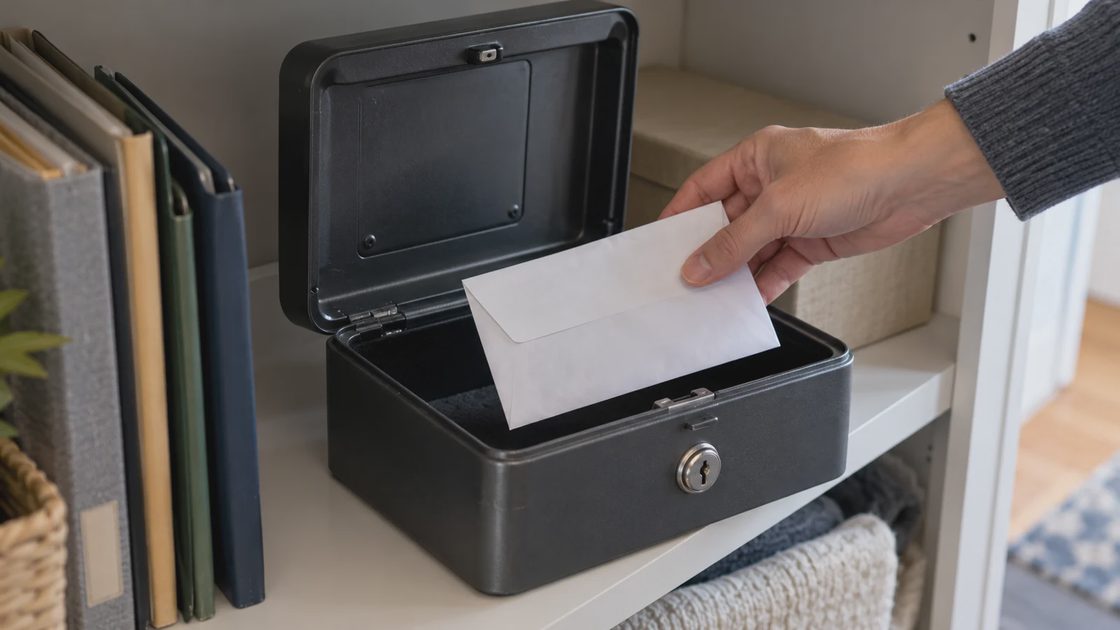
If I were reviewing this setup for a parent, I’d ask them to identify their backup method without handing over any secrets. Knowing where the protected recovery material lives is useful; sending its contents through a family group chat is not.
Read the on-device encryption tradeoff before changing it
Google documents encryption for saved passwords and an on-device encryption arrangement with additional access requirements. With on-device encryption, losing every usable recovery option and every device holding your passwords can mean losing access to those passwords.
Read Google’s encryption guidance for your setup before making changes. My priority is a recoverable configuration, not switching every available setting on during one cleanup session.
Avoid resetting or deleting encrypted password data as an experiment. Recovery instructions can contain destructive options; understand what a confirmation says will be removed before proceeding.
Family sharing is a separate decision
Google Password Manager supports sharing a copy of a saved password with members of your Google family group. That does not mean everyone should use one Google Account, or that sharing a password gives someone a complete recovery plan.
The distinction is a copy of a credential versus ongoing control of an account. If you share a household service, confirm that its terms permit the arrangement and that you intend the recipient to have access.
Before sharing, check:
The account: Is this a household login or a personal one?
The recipient: Is the intended person in your family group?
The password: Is it unique to this service?
The future: What happens when access should end or the password changes?
Google’s password-management instructions advise changing the service password when you no longer want to share access. Don’t assume removing a person from a conversation or deleting your own saved entry makes a previously shared password unusable.
If you need carefully assigned access across several people, business credentials, or a defined emergency handoff, compare tools against those specific requirements. I wouldn’t replace a working manager solely for a longer feature list, but I would reconsider one that leaves the household’s actual access problem unresolved.
Common household patterns I see, and the simpler fix
These are not dramatic failures. They are ordinary situations that make a working manager harder to maintain.
Someone saves household passwords into a work Google Account because that profile is open more often. The simpler fix is to decide which account is the household one and move only the shared credentials there deliberately.
A parent and teen share a laptop under one browser profile. The simpler fix is separate operating-system accounts, even if the teen still needs occasional help logging into something.
Recovery email is an old address the person no longer checks. The simpler fix is updating it while access still works, then confirming the new address arrives.
A shared password was given once and never revisited after someone moved out or stopped using the service. The simpler fix is changing the service password and updating the saved entry.
None of these require switching tools. They require a short, repeatable look.
A Google Password Manager security checklist you can repeat
Use this Google Password Manager security checklist as a maintenance review, not proof that an account can never be compromised. Start with the first unresolved item rather than changing everything simultaneously.
Confirm the account: Household passwords are associated with the intended personal Google Account.
Check sign-in protection: Review 2-Step Verification and supported backup methods.
Check recovery details: Confirm that you can still access the listed phone and email.
Review devices: Inspect your Google Account’s device list and investigate unfamiliar sessions.
Check saved credentials: Open Password Checkup and address compromised or reused passwords at the relevant services.
Review family sharing: Confirm recipients still need the access you gave them.
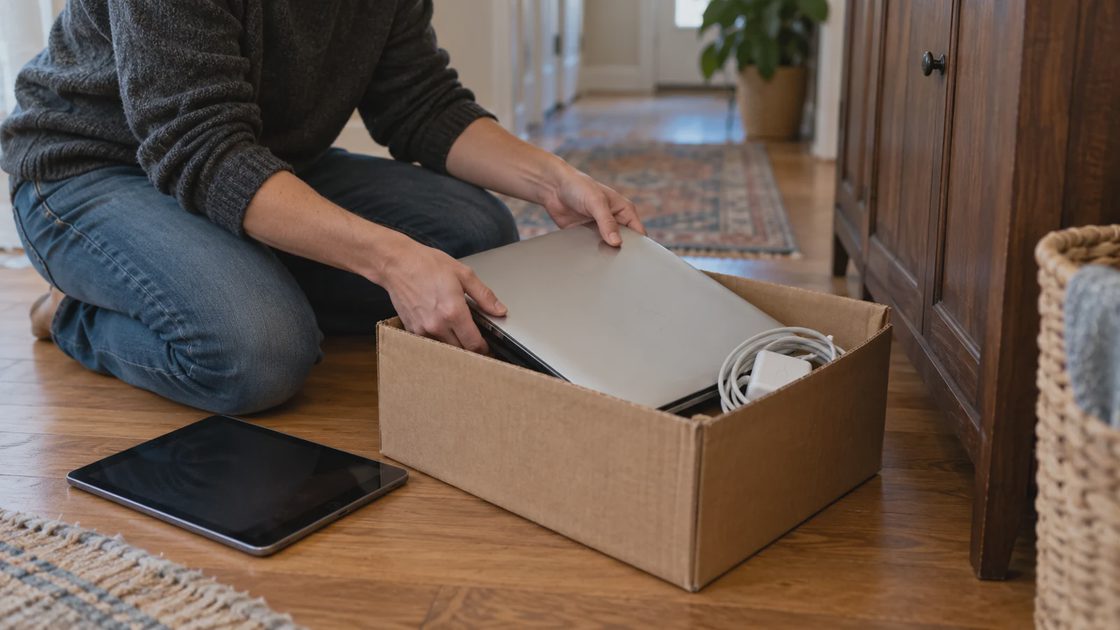
For old equipment, Google’s device-access guide explains how to review and sign out sessions. Signing out of the account is not the same as securely erasing a computer before giving it away; handle both tasks before a handoff.
I’d schedule a quarterly review, then repeat the relevant checks after replacing a phone, changing a number, or handing over a computer. That cadence is a household routine, not a Google security requirement.
So, is Google Password Manager safe enough for your setup? If account protection, device access, recovery, and sharing all have workable answers, it can be a sensible choice. Open your recovery settings now and confirm one contact method still belongs to you before tackling the rest.