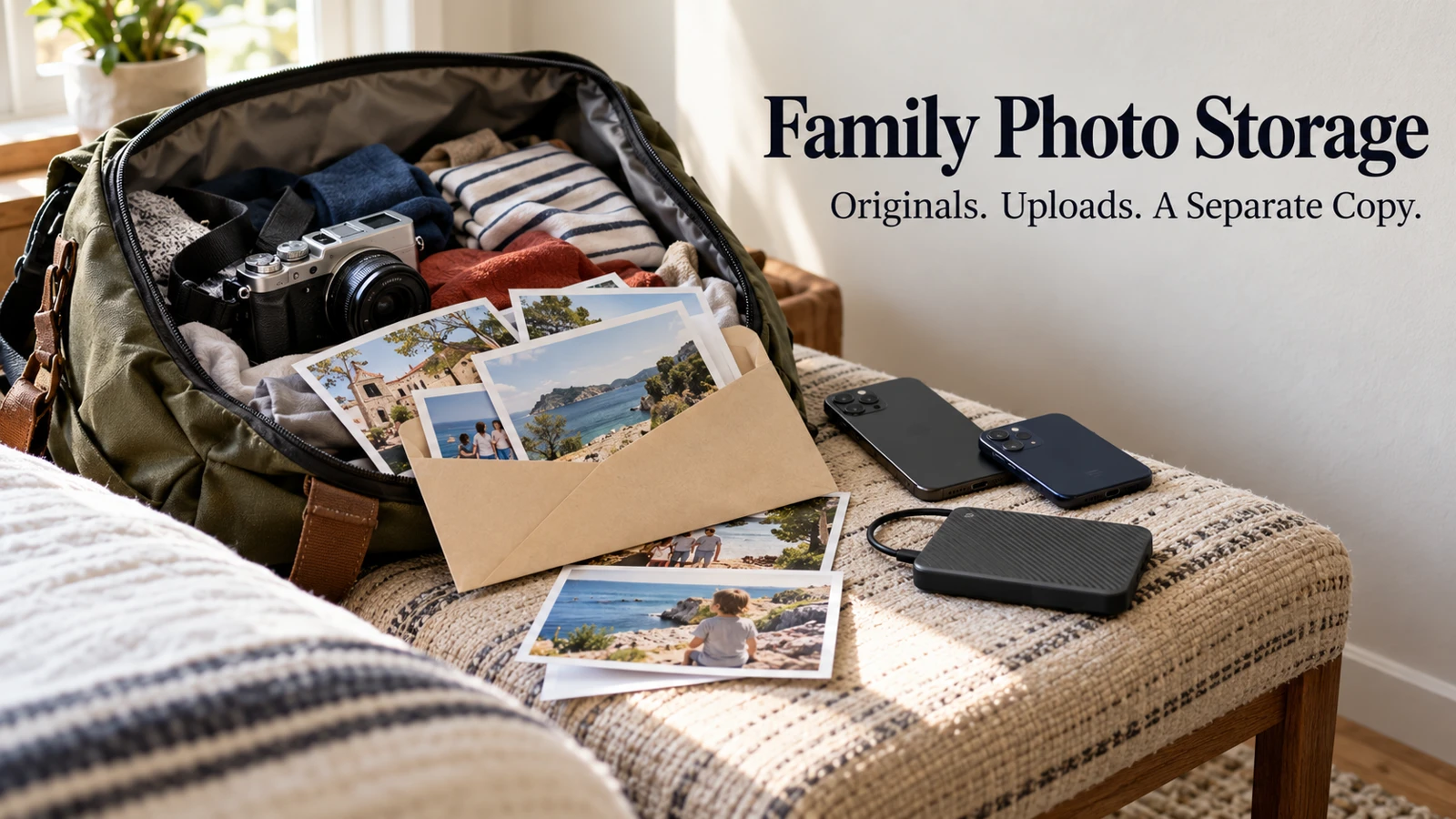
Choose photo cloud storage around the phones your family actually uses, then verify that your important pictures upload and can be downloaded again. For an Apple-centered household, iCloud Photos is a natural starting point; for a mixed-device household, Google Photos deserves a close look. Neither choice removes the need for a separate copy of irreplaceable memories.
The difficult part is usually not uploading today’s picture. It is knowing which account holds last summer’s videos, whether an older relative can open the album, and what happens when someone deletes a photo to free space.
I’d settle those questions before buying a larger storage plan. A service that fits your existing habits is easier to maintain than a theoretically perfect archive that nobody checks.
Pick one main library, not one account for everybody
A main library means an agreed home for the photographs you want to preserve. It does not mean sharing one person’s account password across the household.
Start by listing where pictures already live: each phone, older computers, camera cards, external drives, and existing cloud accounts. Do not move everything immediately. First identify which location contains originals and which locations hold copies downloaded from messages or social media.
A simple inventory might look like this:
Collection | Current location | First useful action |
|---|---|---|
Everyday phone pictures | Each adult’s phone | Confirm the account receiving uploads |
Older camera photographs | External drive | Open sample files before importing |
Shared holiday pictures | Messaging threads | Ask for original files where available |
Scanned family prints | Computer folders | Keep names and approximate dates alongside them |
Cloud photo storage for families works best when people understand the arrangement in one sentence: personal phones upload to their owners’ accounts, selected pictures go into shared albums, and an agreed archive has an independent copy.
That is an example arrangement, not a requirement to merge everyone’s private camera roll. Children’s pictures, medical images, and personal screenshots may need different sharing choices.
iCloud Photos or Google Photos: choose the friction you can live with
Apple explains that iCloud Photos keeps the Photos library updated across devices and stores originals at full resolution. It suits families already comfortable with Apple Photos. The important tradeoff is that edits and deletions sync too; deleting a photograph on one participating device can delete it elsewhere.
Google Photos is another practical candidate when family members use different kinds of devices. Evaluate its app and sharing experience on your actual phones rather than assuming everyone sees the same controls.
I would compare the following household tasks before committing:
Can each adult find last year’s pictures without help?
Can a relative open a deliberately shared album without seeing unrelated photos?
Can you download a full-quality sample and locate it outside the service?
Does the household understand which person pays for storage?
Is there a workable recovery method if that person loses their phone?
Do those tasks with a small, non-sensitive sample collection. A successful app installation proves less than a successful retrieval.
If both services already contain important pictures, choose the main destination before importing either collection. Otherwise you may pay to store duplicates while still feeling unsure which version is complete.
Quality settings deserve an actual file check
A search for “photo storage cloud” often produces pages comparing gigabytes. For family memories, the quality and recoverability of the files matter just as much as capacity.
For cloud photo storage, original quality means preserving the uploaded file without choosing a space-saving conversion. It does not improve a blurry original or restore detail removed before you received the picture.
Google’s backup-quality documentation distinguishes Original quality from Storage saver. Review the selected setting before uploading a large collection, and read any conversion warning before applying it to files already stored.
For a meaningful check, use three different items:
An older photograph whose date matters.
A recent full-resolution phone photo.
A longer video, not just a short clip.
Download the samples and open them outside the photo app. Look at the file dimensions, playback, orientation, and date information you rely on. A thumbnail that looks fine on a phone does not establish that the entire original downloaded correctly.
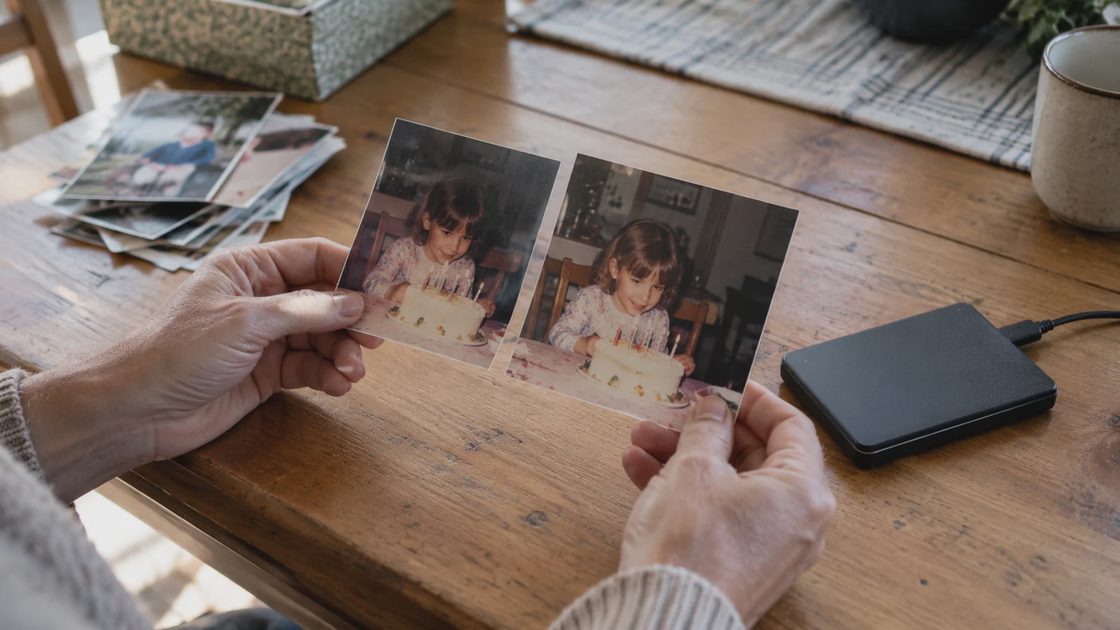
If I were preserving a grandparent’s scanned photographs, I’d keep the original scans separately even if I chose smaller everyday copies for sharing. The useful compromise is convenience for browsing without making the browsing copy the only surviving version.
Before paying annually, estimate how quickly new photos and videos consume your current allowance. Check the actual household bill, who owns it, and whether shared storage includes private collections. Capacity is a recurring expense, so record the next renewal alongside the library’s owner.
Do not use “everything looks good” as the record. Write down which sample you checked and where its downloaded file can be found.
Family photo storage sharing: separate the audience from the archive
Sharing a whole library can solve one problem while creating another. Someone who only needs vacation photos may not need access to every screenshot or every future upload.
For family photo storage sharing, decide the audience before choosing the button. Think in three groups: people who manage the collection, people who contribute selected pictures, and people who only view a finished album.
Use a small test album first. Invite the intended recipient through the service’s supported method, have them open it using their own account or permitted access method, and ask what they can see.
Check these details together:
Visibility: Does the invitation reveal only the intended collection?
Contribution: Can the person add pictures, or only view them?
Removal: What happens to access if you remove the invitation or link?
Copies: Could someone already have downloaded the shared files?
Revoking a link cannot recall a copy someone has saved. That is a reason to share thoughtfully, not a reason to avoid sharing family memories altogether.
Keep private recovery information out of the album. A photograph of a passport, school form, or account-recovery sheet belongs in a more restricted document system, even if it happens to appear among family pictures.
How to check cloud photo uploads without inspecting every picture
The answer to how to check cloud photo uploads is to combine the overall status with a few targeted file checks. Seeing a picture in the phone app may mean you are looking at a local file rather than its completed cloud copy.
Google’s backup guide explains how to inspect backup status and an individual item’s details. The account shown matters: uploads to an old or unintended account will not appear where the rest of the family expects them.
My recurring review would cover four signals:
Signal | What it tells you | What it does not prove |
|---|---|---|
Overall upload status | Whether work is queued or finished | That every old device folder was selected |
Account identity | Which account holds the collection | That another relative can access it |
Recent sample in the web library | That the sample reached the account | That every video uploaded successfully |
Downloaded sample opens | That one retrieved file works | That the entire archive is recoverable |
If uploads pause, check available storage, connection, selected folders, and the app’s current instructions before deleting local files. The fix may be a setting or unfinished upload rather than a need to change services.
Keep a copy that does not follow every deletion
Apple explicitly recommends keeping backup copies of an iCloud Photos library; photos synced there are not duplicated in the regular iCloud device backup. That distinction matters when the same mistake can propagate across devices.
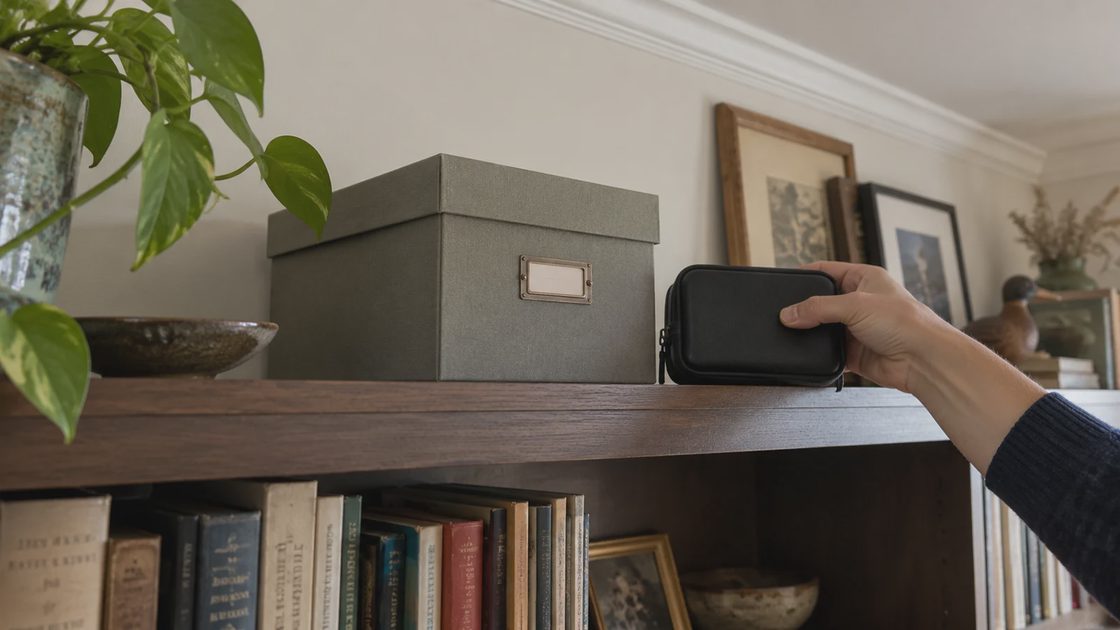
Keep a separate export or backup of irreplaceable photographs and videos, then verify a few files from it. A drive connected only occasionally can play a different role from the live photo library. It still needs protection from loss, damage, and being forgotten in a drawer.
For a manageable routine, review recent uploads monthly and make a separate archive copy on a schedule suited to how quickly your collection grows. Repeat the checks after a phone replacement, account change, or major import. Those are editorial maintenance suggestions, not provider requirements.
For sensitive records mixed into a camera roll, use a separate household document vault rather than a shared photo album.
Before upgrading storage today, choose one important older photo. Find its cloud account, download it, and confirm where the separate copy lives. That small check tells you more about your family photo system than another row in a capacity comparison.